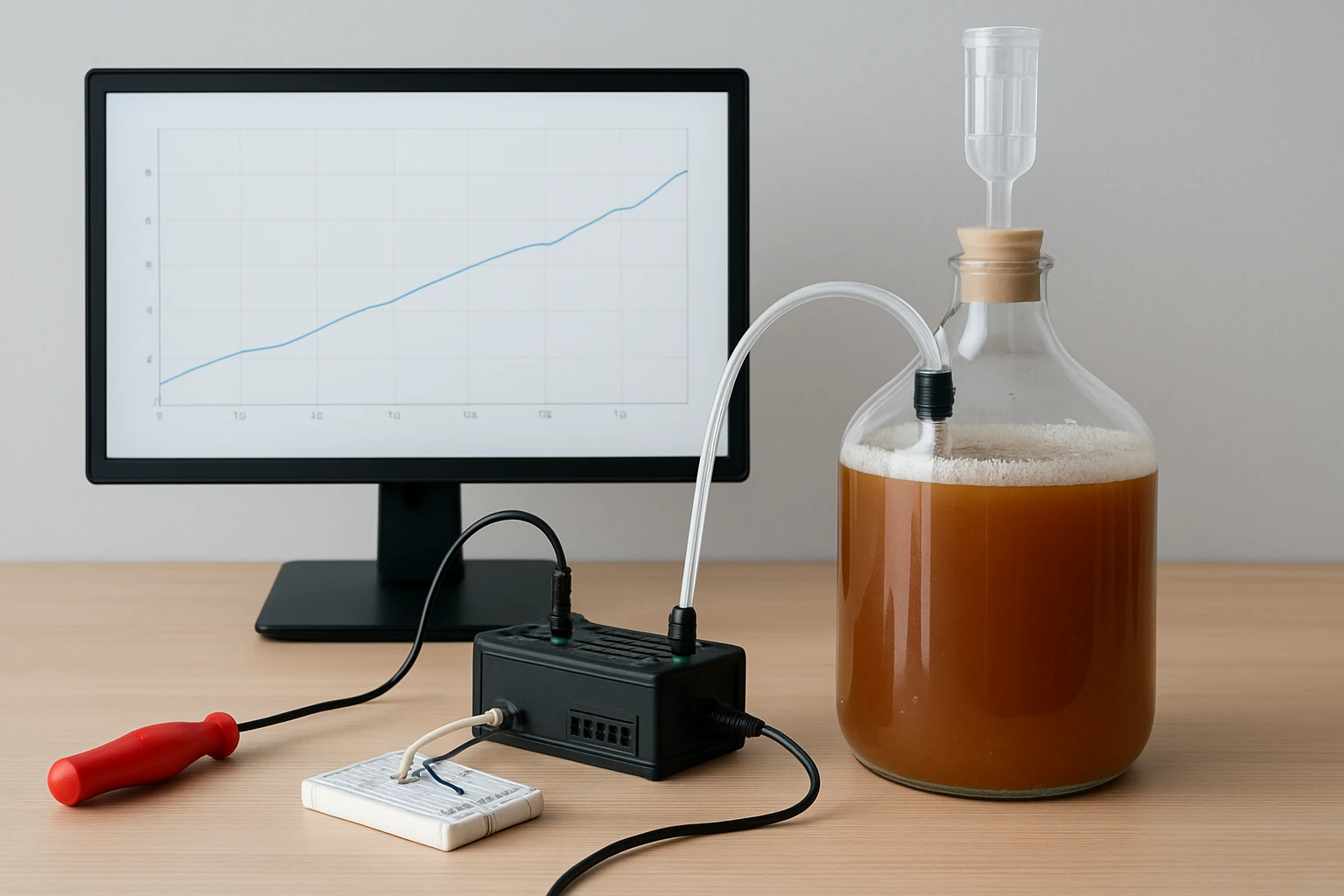
How to Build a DIY Raspberry Pi Fermentation Monitor: Step-by-Step Guide for Homebrewers
Introduction
The homebrewer who wishes to track temperature and humidity during fermentation can achieve precise control by using a low‑cost single‑board computer. This guide explains how to assemble a Raspberry Pi‑based monitor, install the necessary software, and integrate a sensor array that records data in real time. By following each step, one will create a reliable device that stores measurements, sends alerts, and visualises trends on a web dashboard. The result is a professional‑grade monitoring solution without the expense of commercial equipment.
What You’ll Need
- A Raspberry Pi board (either a full‑size Pi 4 or a compact Pi Zero 2 W)
- Micro‑SD card with pre‑installed operating system
- Case with cooling fan and heatsinks
- Micro HDMI to HDMI adapter for initial setup
- Power supply with on/off switch
- Temperature and humidity sensor (e.g., DHT22 or DS18B20)
- USB keyboard, mouse, and monitor for configuration
- Internet connectivity (Wi‑Fi or Ethernet)
All of the essential Raspberry Pi components are available in the kits listed below; additional peripherals such as sensors can be purchased separately.
Step 1: Gather the Hardware Components
Begin by selecting the appropriate development board. For most homebrewers, the Vilros Raspberry Pi 4 Starter Kit provides ample processing power, four gigabytes of RAM, and a complete accessory set. The kit includes a clear case with a built‑in fan, a 64 GB pre‑loaded micro‑SD card, a compatible power supply with an inline switch, a 5 ft HDMI cable, heatsinks, and a quick‑start guide. At $149.99, the kit holds a 4.6‑star rating from 1,517 reviewers, indicating strong satisfaction with its comprehensive nature.
If space is limited, the Seeed Studio Raspberry Pi Zero 2 W Kit offers a compact alternative. It features a quad‑core 64‑bit ARM Cortex‑A53 processor, built‑in Wi‑Fi and Bluetooth, and an aluminum heatsink for passive cooling. Priced at $41.99 with a 4.5‑star rating from 135 reviewers, the kit includes a micro‑USB OTG cable and HDMI adapter, making it suitable for portable fermentation setups. Choose the Pi 4 kit when multiple sensors or a graphical dashboard are required; choose the Zero 2 W kit for a minimalist, low‑profile installation.
Step 2: Prepare the Operating System
Insert the pre‑loaded 64 GB micro‑SD card from the Vilros kit into a computer’s card reader. The card contains Raspberry Pi OS (formerly Raspbian), which provides a familiar desktop environment and a robust package manager. If using the Zero 2 W kit, the micro‑SD card is not pre‑installed; download the latest Raspberry Pi OS image from the official website, then write it to a micro‑SD card using the Balena Etcher utility. After flashing, place the card into the Raspberry Pi’s slot, ensuring the contacts align correctly as described in the kit’s quick‑start guide.
Power the board using the supplied power supply. The Vilros power adapter includes an inline on/off switch, which prevents accidental power cycles that could corrupt the file system. Observe the LED indicators; a steady green light indicates successful boot, while a red light confirms power is applied. Connect a monitor via HDMI, a keyboard, and a mouse to complete the initial configuration.
Step 3: Assemble the Case and Cooling System
Secure the Raspberry Pi board into the clear case provided by the Vilros kit. The case’s built‑in fan attaches to a two‑row header; connect the red (positive) fan lead to pin 1 and the black (negative) lead to pin 14, as the user manual specifies. Apply the four self‑adhesive heatsinks to the CPU, RAM, and voltage regulator chips; these components generate the most heat during sensor polling and network traffic. The combination of active fan cooling and passive heatsinks maintains the board temperature below 50 °C, which is essential for long‑term reliability during fermentation cycles that may run for several weeks.
If the Zero 2 W kit is selected, the included aluminum heatsink attaches directly to the processor without the need for a fan. This passive solution is sufficient for low‑intensity tasks such as temperature logging, but monitor the temperature during prolonged sensor reads to avoid throttling.
Step 4: Connect the Display Using a Micro HDMI Adapter
To configure the software, attach a monitor to the Raspberry Pi’s micro HDMI port. The JSAUX Micro HDMI Adapter supports 4K@60 Hz, HDR, and 18 Gbps bandwidth, ensuring a crisp display during setup. Constructed from nylon‑braided material and gold‑plated connectors, the adapter is rated for 5,000 plug‑unplug cycles, providing durability for repeated testing. Priced at $8.99 with a 4.7‑star rating from 2,492 reviewers, it offers excellent value for a reliable connection.
Plug the adapter into the Pi’s micro HDMI port, then connect the HDMI cable from the adapter to the monitor. Power on the board using the supply’s switch; the fan should spin, and the monitor will display the Raspberry Pi OS desktop. If the screen remains blank, verify that the HDMI cable is fully seated and that the monitor is set to the correct input source.
Step 5: Install Temperature and Humidity Sensors
For fermentation monitoring, a DHT22 sensor provides accurate temperature (‑40 °C to +125 °C) and relative humidity (0 % to 100 %) readings. Connect the sensor’s VCC wire to a 3.3 V GPIO pin, the GND wire to a ground pin, and the data wire to a free GPIO pin (e.g., GPIO 4). Enable the 1‑wire interface via the Raspberry Pi OS configuration tool (sudo raspi-config) to allow the operating system to communicate with the sensor.
Secure the sensor in a waterproof enclosure and place it inside the fermentation vessel’s headspace, ensuring it does not contact the liquid directly. This placement yields reliable data while protecting the electronics from moisture.
Step 6: Configure Software for Data Logging
Open a terminal window and install the required Python libraries: pip install Adafruit_DHT flask pandas. The Adafruit_DHT library reads data from the DHT22 sensor, while Flask creates a lightweight web server to display live readings. Create a Python script named ferment_monitor.py that reads the sensor every minute, stores the values in a CSV file, and updates a simple HTML dashboard.
Set the script to run at boot by editing the crontab with @reboot python /home/pi/ferment_monitor.py &. This ensures that the monitor begins logging as soon as power is applied, which is crucial for the initial fermentation phase.
Step 7: Test the System and Calibrate Sensors
Power the Raspberry Pi and open a web browser on the same network. Navigate to http://raspberrypi.local:5000 (or the Pi’s IP address) to view the live dashboard. Verify that temperature and humidity values change in response to environmental adjustments, such as placing the sensor near a warm water bath.
If the readings appear offset, calibrate the sensor by applying a known temperature reference (e.g., an ice‑water mixture at 0 °C) and adjusting the script’s offset parameter. Accurate calibration improves the reliability of fermentation predictions and prevents batch loss.
Step 8: Deploy the Monitor in the Fermentation Vessel
Place the Raspberry Pi in a protective case near the brewing area, ensuring adequate ventilation. Connect the power supply to an uninterruptible power source (UPS) if possible, to avoid data loss during power outages. Route the sensor’s cable through a sealed port in the fermentation lid, and secure the cable with a zip tie to prevent accidental disconnection.
Monitor the dashboard throughout the fermentation cycle. Set up email or SMS alerts using a simple Python script that triggers when temperature deviates beyond a predefined range. These alerts enable the brewer to take corrective action promptly, preserving the quality of the brew.
Tips & Pro Tips
- Use a high‑quality micro‑SD card (e.g., SanDisk Extreme Pro) to reduce read/write latency and improve system stability.
- Mount the Pi’s case in a location that is not exposed to direct sunlight, as external heat can skew sensor readings.
- Enable SSH on the Raspberry Pi to perform remote updates without needing a dedicated monitor after initial setup.
- Consider adding a small OLED display to the GPIO header for on‑board readouts, which can be useful when network access is limited.
Troubleshooting
Problem: The fan does not spin after assembly.
Solution: Verify that the fan’s red lead is connected to pin 1 and the black lead to pin 14. Re‑seat the connector and ensure the power supply is switched on.
Problem: No data appears on the web dashboard.
Solution: Confirm that the sensor’s data pin matches the GPIO pin specified in the script. Check that the Adafruit_DHT library is installed and that the script has execution permission.
Problem: The Raspberry Pi fails to boot after power loss.
Solution: Use the power supply’s inline switch to perform a proper shutdown before disconnecting power. If corruption persists, re‑flash the micro‑SD card using the original image.
Conclusion
By following this guide, the homebrewer now possesses a fully functional Raspberry Pi fermentation monitor that records temperature and humidity, provides real‑time visualization, and sends alerts when conditions drift. The recommended Vilros Raspberry Pi 4 Starter Kit, Seeed Studio Raspberry Pi Zero 2 W Kit, and JSAUX Micro HDMI Adapter each contribute essential hardware capabilities, while the open‑source software stack ensures flexibility for future enhancements. One can now brew with confidence, knowing that critical fermentation parameters are continuously tracked and protected against unexpected variations.
Products Mentioned in This Guide
Frequently Asked Questions
What hardware components are needed to build a Raspberry Pi fermentation monitor?
You need a Raspberry Pi (Pi 4 or Pi Zero 2 W), micro‑SD card with OS, case with fan/heatsinks, power supply, HDMI adapter, USB keyboard/mouse/monitor, a temperature/humidity sensor (e.g., DHT22 or DS18B20), and internet connectivity.
How do I connect a DHT22 or DS18B20 sensor to the Raspberry Pi?
Wire the sensor’s power (3.3 V) and ground pins to the Pi’s GPIO header, then connect the data pin to a free GPIO pin and enable the appropriate library in your software.
Which operating system should I install on the micro‑SD card for this project?
Use Raspberry Pi OS (formerly Raspbian) Lite for a lightweight setup, then install required Python libraries and web dashboard tools.
How can I view fermentation temperature and humidity data in real time?
Run a web server (e.g., Flask) on the Pi that logs sensor readings and displays them on a browser-accessible dashboard.
How do I set up alerts when temperature goes out of range?
Configure a script to compare readings against set thresholds and send email or push notifications via services like IFTTT or Pushover.